
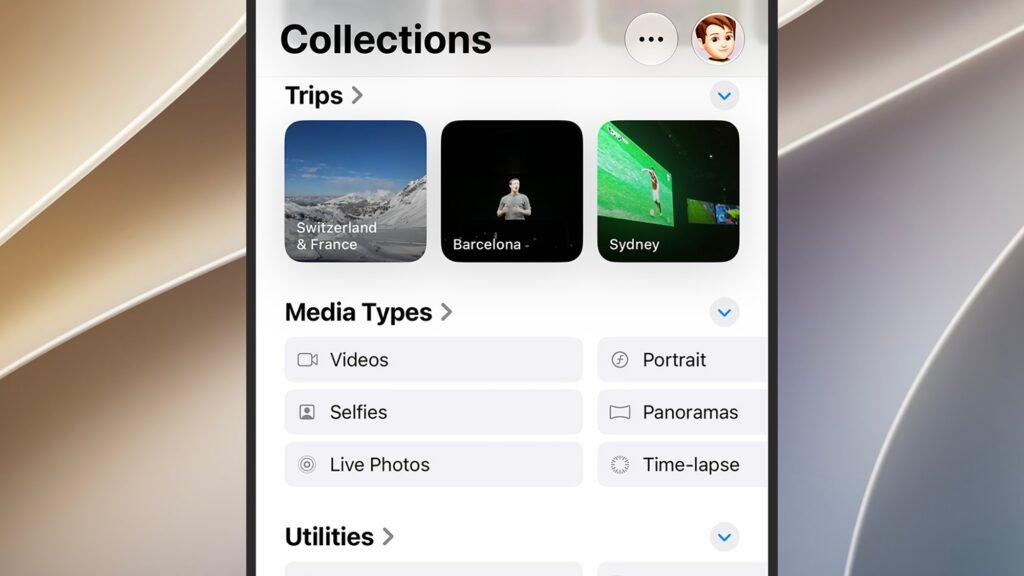
It’s important to get all of the photos and videos you capture with your phone backed up somewhere safe, and Apple Photos is one of the best options for the job—especially if you’re using iPhones, iPads, and Macs more often than other devices and platforms. We’ve written before about how you can get all of
It’s important to get all of the photos and videos you capture with your phone backed up somewhere safe, and Apple Photos is one of the best options for the job—especially if you’re using iPhones, iPads, and Macs more often than other devices and platforms.
We’ve written before about how you can get all of these files safely stored in Google Photos, which means they’re then available on just about any device you like, and it’s possible with Apple Photos too, if you know how.
Transferring properly prepared images and videos to Apple Photos is more difficult on Windows and Android, but it can be done—and then you’ve got your entire photo library in one repository, under Apple’s control, and available on the web and on different devices.
For the purposes of this guide, we’re going to assume you already have an Apple account, and that you’re paying Apple for at least some iCloud storage to sync your files too (prices start at $0.99 a month for 50GB of space).
iOS
Apple makes photo and video syncing easy on the iPhone, as you would expect: It’s likely to be the device you’re capturing most of your photos and videos on, even if you also own a separate digital camera, and everything you shoot through the Camera app shows up in the Photos app automatically.
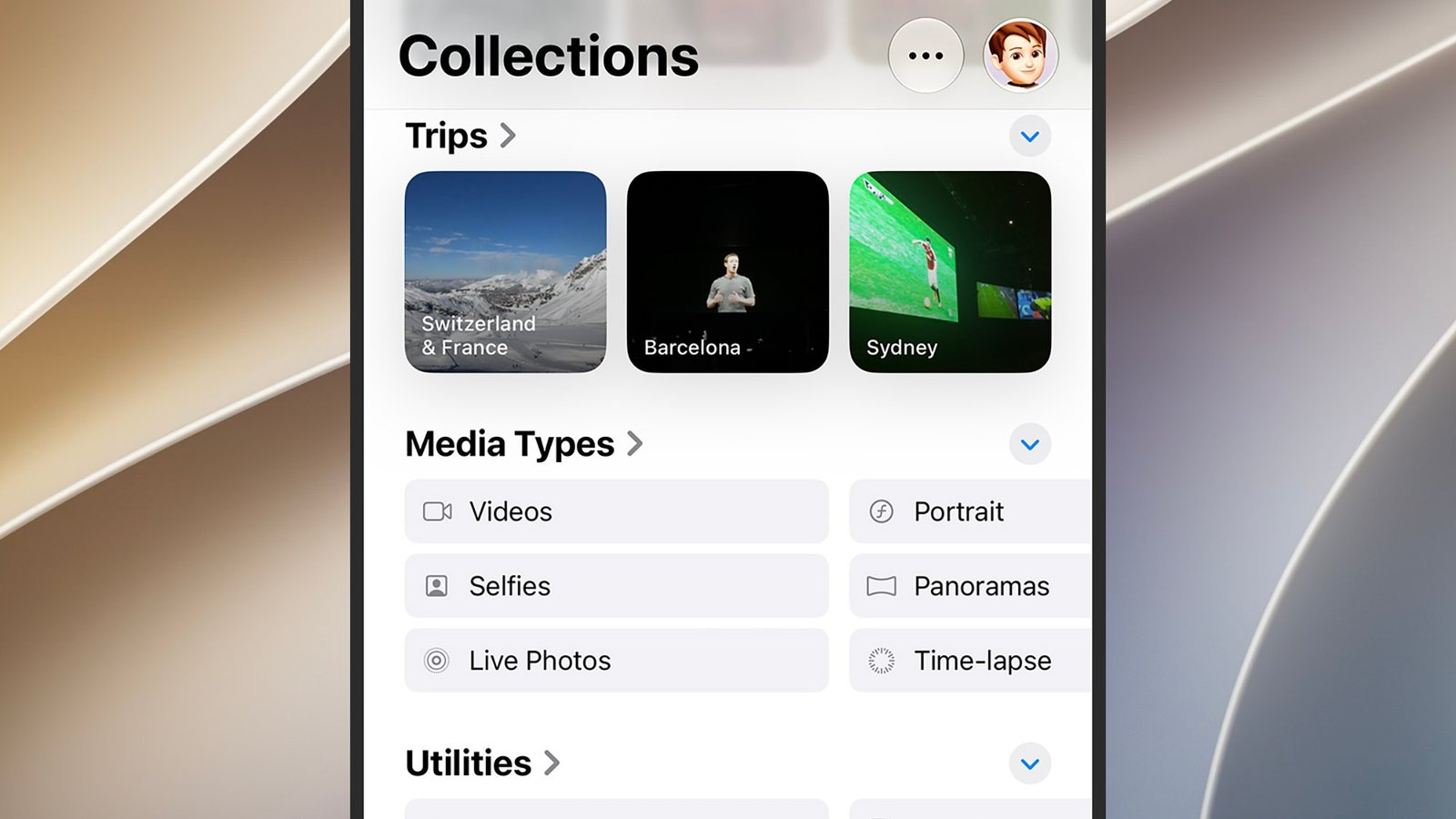
The Library tab in the Photos app lets you see all your pictures and videos in one long stream, while the Collections tab gives you access to your albums, collections created by the app—these will include groups based on people and locations.
To customize how Photos works on iOS, open Settings and tap Apps > Photos. First and foremost, make sure the iCloud Photos toggle switch is enabled—this means your images and videos are being synced to the cloud. The options further down let you control other aspects of the app, including whether full copies of images and videos are kept locally.
macOS
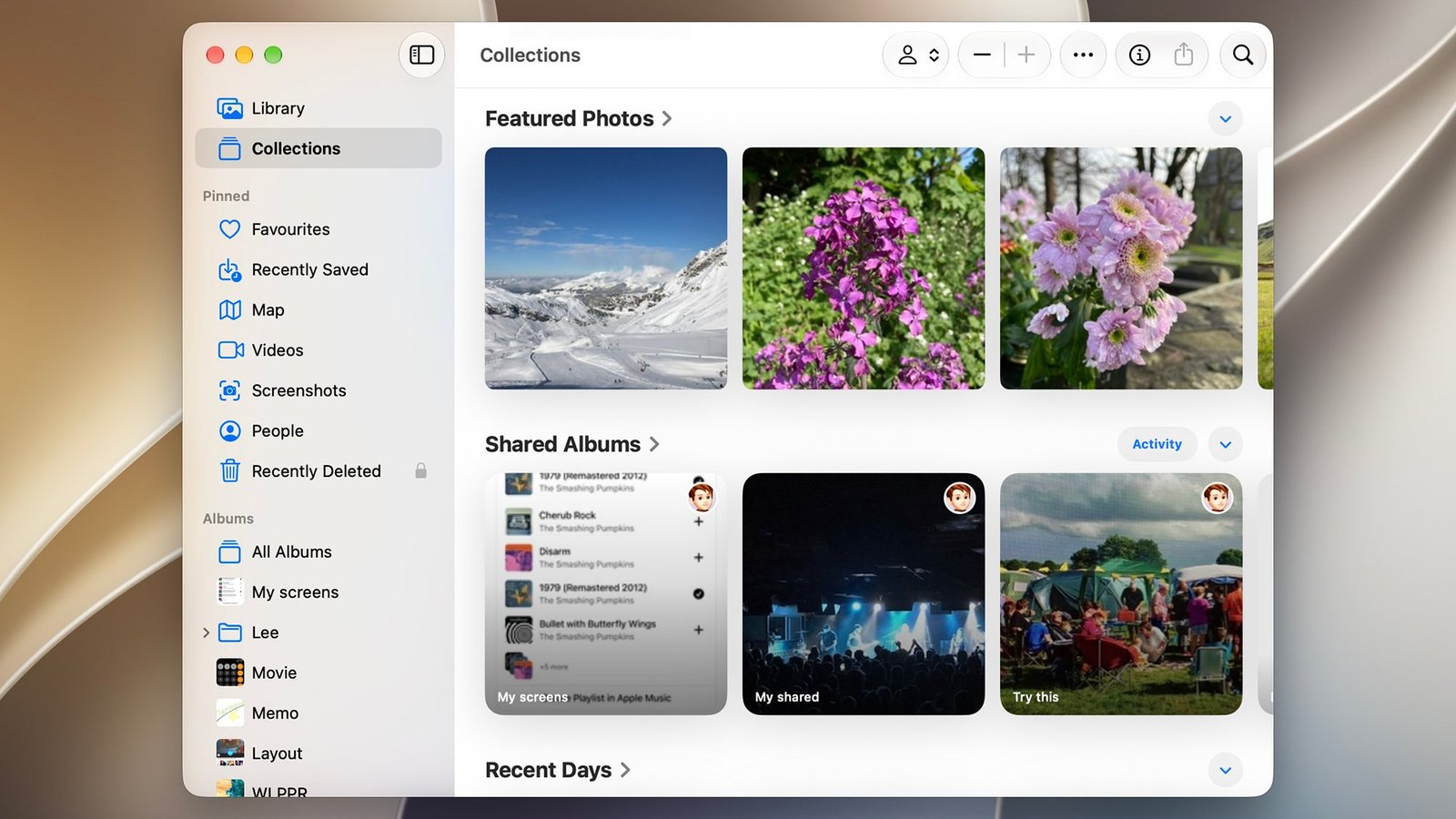
The Apple Photos app on macOS is similar to the one on iOS, and you’ll find a lot of the same sections in it, available from the left-hand navigation pane: They include Library, Collections, Favorites, and People. Any photos or videos taken on your iPhone will be automatically synced over and available in the macOS Photos app.
You may have images and videos on your Mac that haven’t been taken on your iPhone, though (maybe moved over from a camera or downloaded from the web). To get these into Apple Photos, choose File > Import, then make your selection. You can also drag photos, clips, or entire albums over from Finder into Photos.
Select Photos > Settings to customize how Apple Photos works on macOS. The iCloud tab is where you can manage backing up to the web and how local copies of your files are handled, while under General there’s a Copy items to the Photos library box—make sure this is checked to ensure imported files get uploaded to iCloud.
iCloud
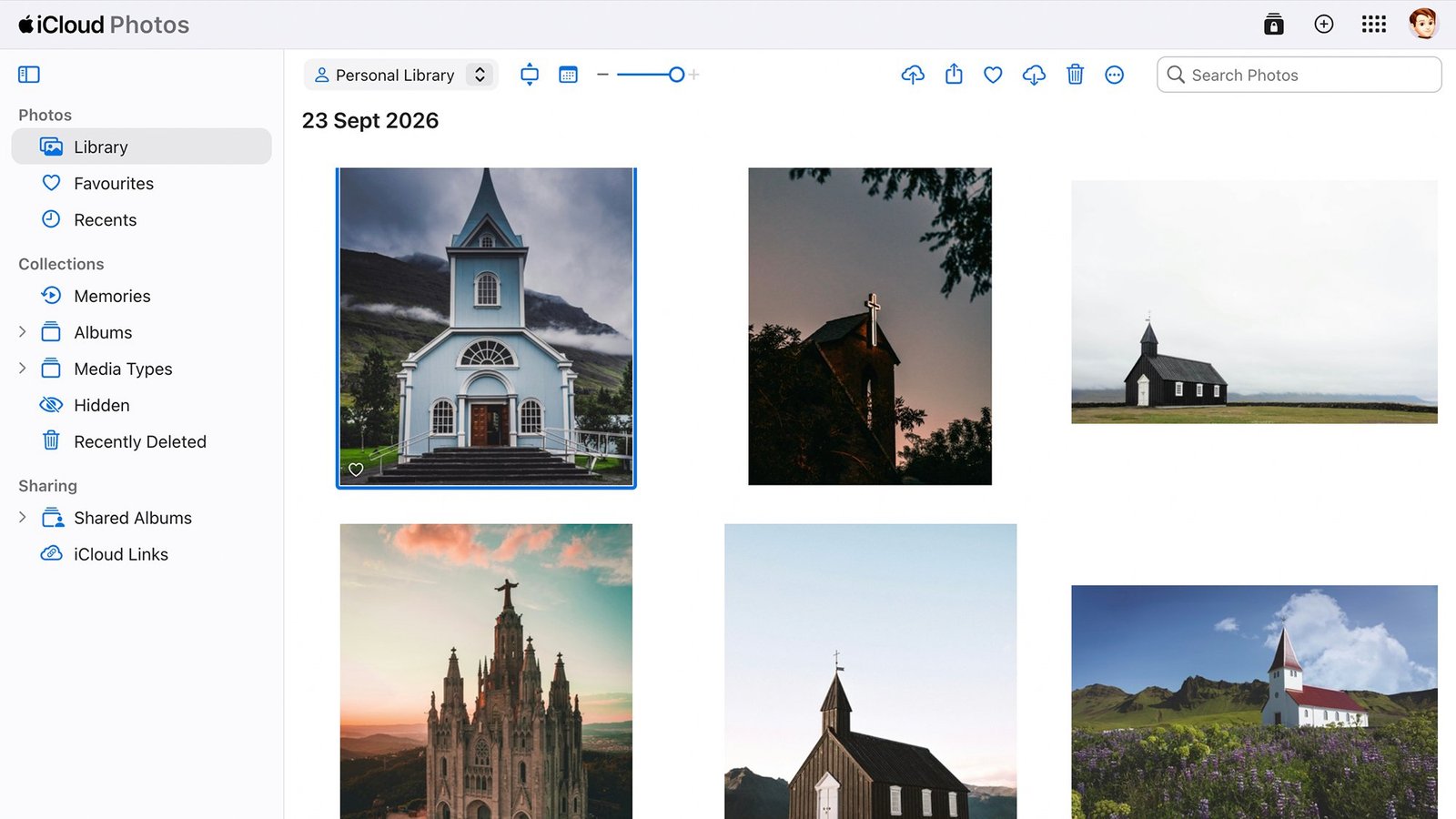
There’s a Photos web app available too, which you can find by logging into the iCloud website with your Apple credentials. You can get at this portal—and all of your backed-up photos and videos—from any device with a web browser, so it’s useful for working across different locations and different platforms.
The main purpose of the Photo app on iCloud is to let you view your files, but you don’t get quite as many options as you do on iOS or macOS—there’s no Collections tab in the navigation pane, for example, so it’s not possible to quickly jump to groups of photos based on people or places.
You do get a basic upload feature, though, which is helpful if you want to transfer photos or videos from a device you don’t use regularly (like an office PC or a friend’s laptop): From the main Library tab, click the Upload button at the top, which looks like an arrow pointing into a cloud, then choose the relevant files.
Android
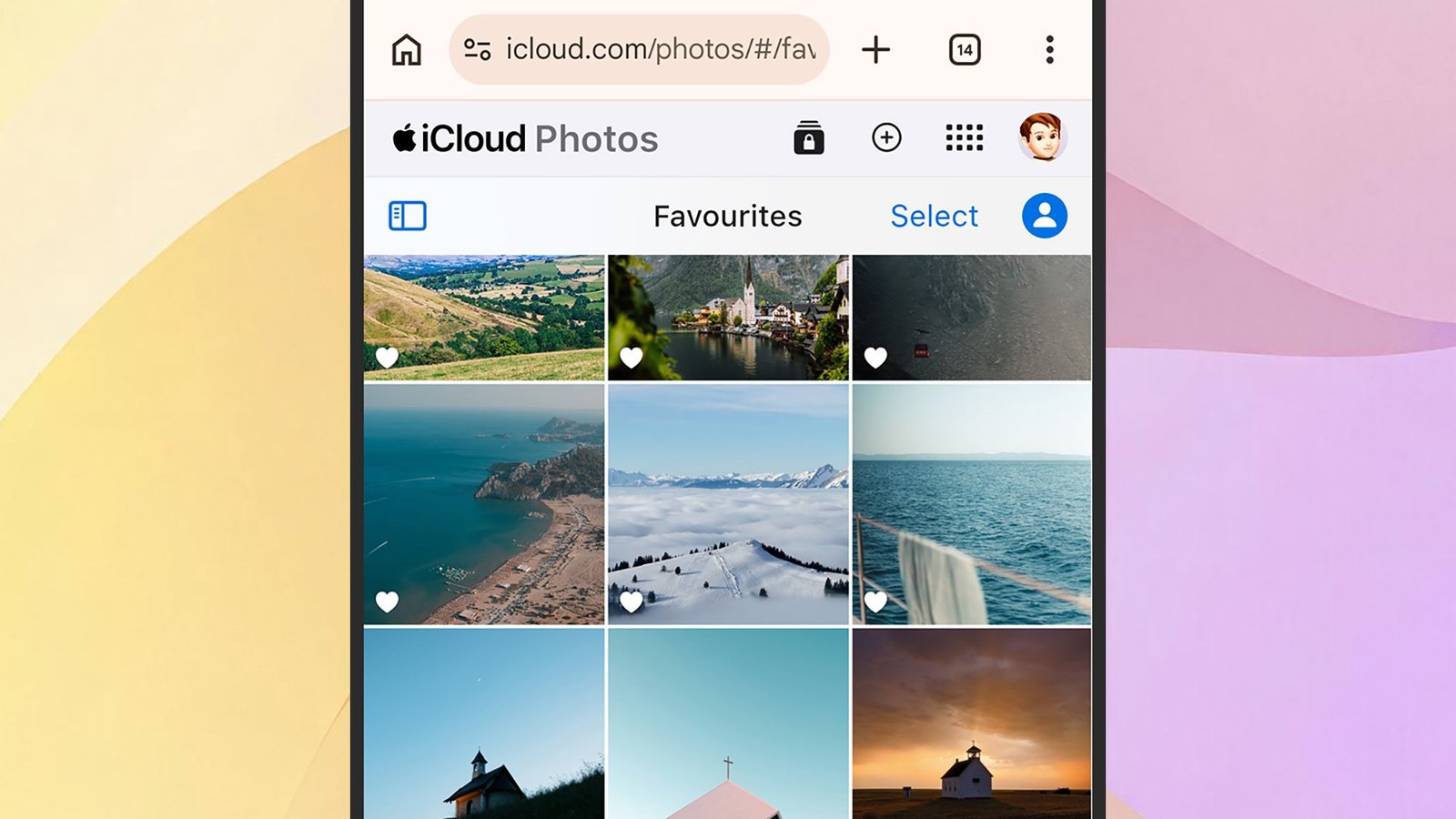
Unfortunately, there’s no easy way to get your photos and videos from Android into Apple Photos. While Apple does make Android apps for its music and video streaming platforms, Apple Photos has yet to make the jump, so you’re relying on some less-than-ideal solutions for backing up.
The best official route is to load up the iCloud website in your Android web browser of choice, sign into your Apple account, and then access the Photos app that way. You can browse through your images and videos, and even upload files via the button in the top right corner (it looks like an arrow pointing upwards into a cloud).
That all works manually, though, and there’s no instant sync that happens on your behalf. Your other option on Android is to use another app as an intermediary—something like Dropbox or Google Photos, for example—to get your photos and videos synced automatically to a laptop, and from there to Apple Photos.
Windows
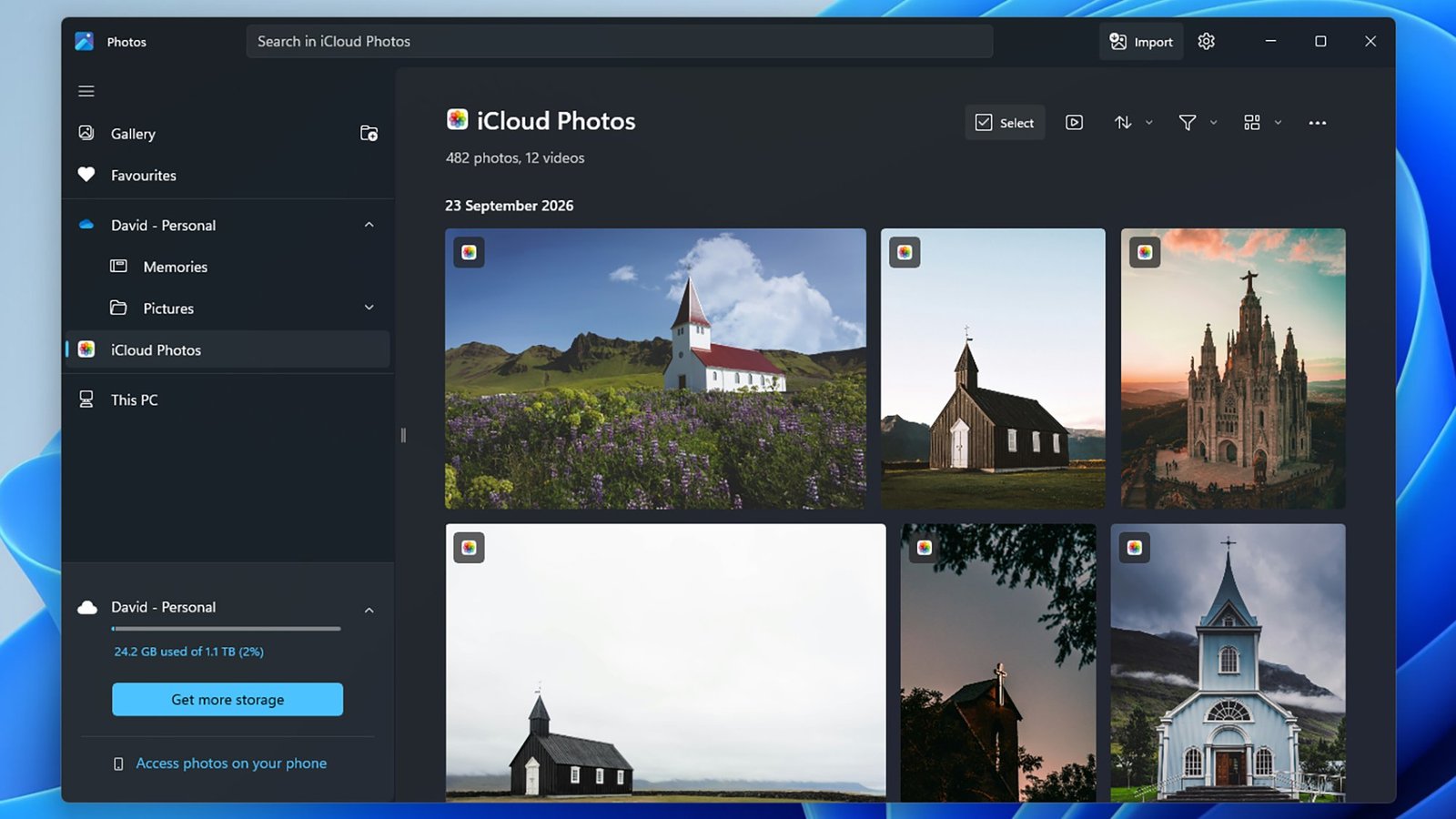
Apple Photos support is better than you might expect, given that Microsoft and Apple are competitors in a lot of areas. There is an official iCloud for Windows app that Apple develops, which you can download to your desktop or laptop. Besides setting up Apple Photos, you can also sync passwords, calendars, contacts, and iCloud Drive to your PC.
If you do sync your iCloud photo and video library, which presumably you want to if you’re reading this, it will show up as a separate section in the Microsoft Photos app that comes with Windows. You can use the Microsoft Photos app to view your existing library and add new images and videos to it (by copying them from other parts of the app).
The main iCloud for Windows settings screen lets you choose where on your Windows system your Apple Photos library is stored, and in what kind of quality. You also have the option of using the iCloud web app on your Windows PC, if you don’t want any files saved locally, for manual uploading.

2026 Popular Science Home of the Future Awards
For more tech updates, stay tuned to our blog.